
Add a Countdown Timer to Your Shopify Store
Show a sale or launch deadline on your product page or landing page using a Custom Liquid section. Start with a branded embed, or use Pro for watermark removal, unlimited views and editable campaign timers.
Create Your Shopify CountdownWhy Use a Countdown Timer on Shopify?
Every Shopify sale event has a deadline — but if shoppers can't see it, it doesn't create urgency. A countdown timer makes the deadline impossible to miss, turning "I'll come back later" into "I should buy this now."
A visible deadline next to the price pushes shoppers to complete checkout before time runs out.
Compare purchases and revenue to see whether a visible deadline helps your campaign.
Drops and limited offers feel scarce when the clock is ticking — and scarcity sells.
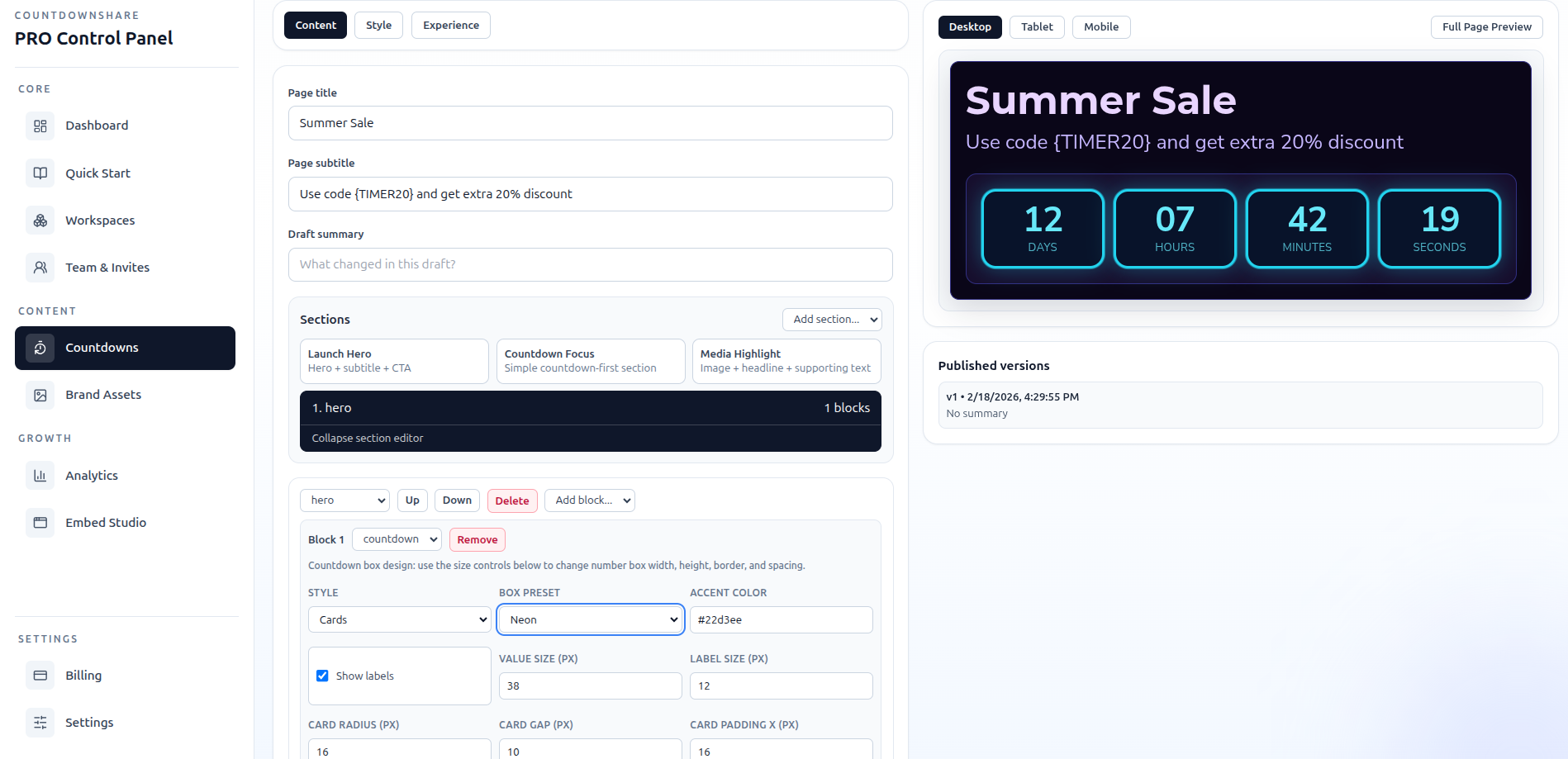
Step 1: Create Your Countdown Timer
Open the CountdownShare builder, set your sale or launch end date, add a title like "Flash Sale Ends In", and pick a theme. A live preview shows exactly how the timer will look in your store.
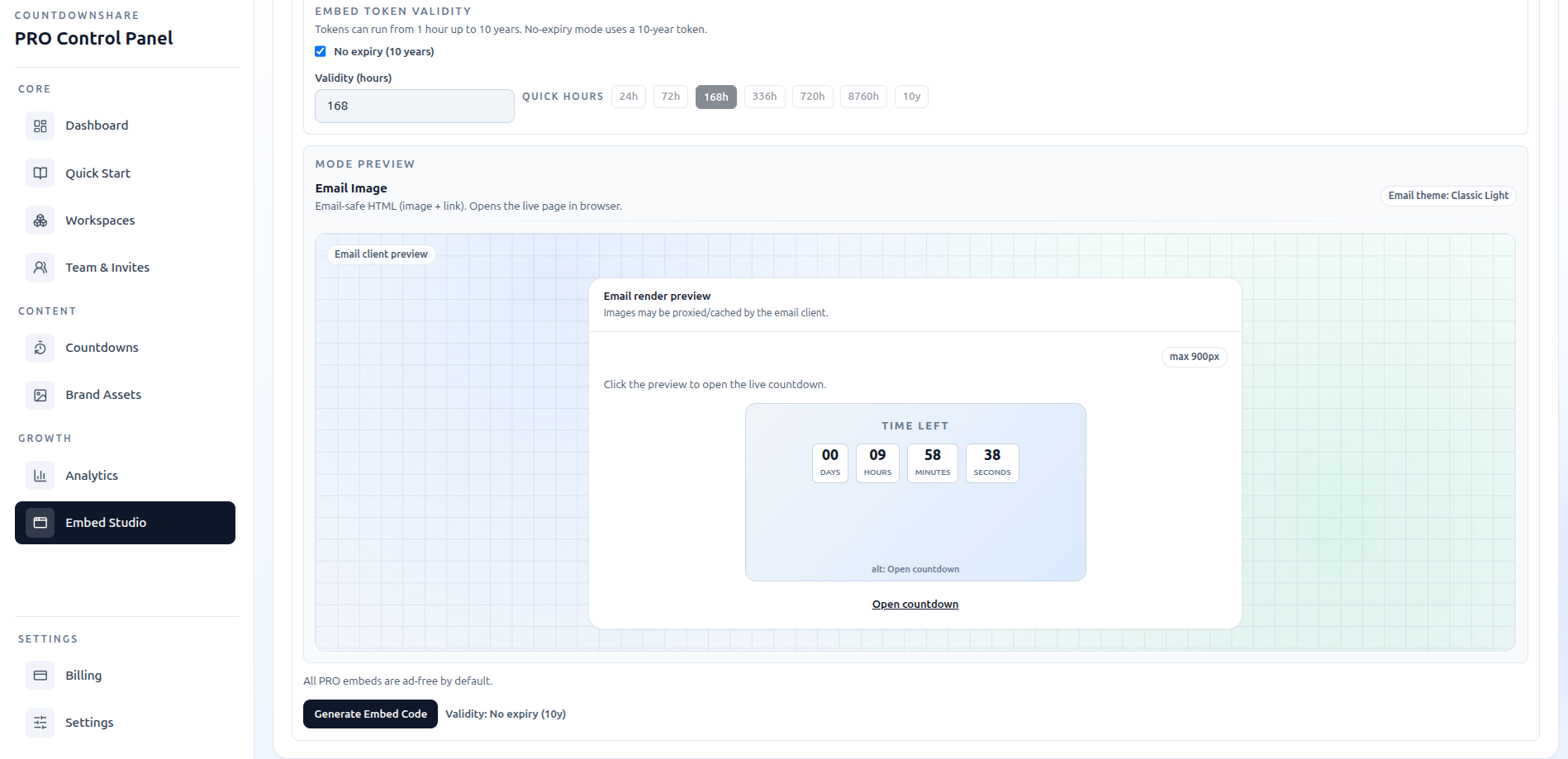
Step 2: Copy the Embed Code
Click the embed button to open the embed studio. CountdownShare generates a responsive HTML iframe snippet with your timer ID filled in — click copy and you're ready for Shopify.
Step 3: Add to Shopify Product Page or Collection
In your Shopify admin, choose where the timer should appear:
- Product page: in the theme editor, add a Custom Liquid block to the product template and paste the embed code near the price or Add to Cart button.
- Collection or landing page: add a Custom Liquid section at the top of the template so the deadline frames the whole sale.
- Pages (e.g., a sale page): open the page in Shopify admin, switch the rich text editor to </> HTML view, and paste the snippet.
Show the countdown only on the products in your campaign
A section added to a shared product template can appear on every product using it. For a product-specific deadline, create a separate template and assign it only to the intended products. Avoid the shared header or footer unless the deadline applies across the store. Check another product after saving to confirm the scope.
See Shopify’s section guidance and example of assigning a separate product template. Theme sections control storefront placement; they do not grant access to embed code in Shopify checkout. Configure discount expiry in Shopify separately—the timer does not change prices or invalidate discount codes.
Step 4: Customise Colours & Design
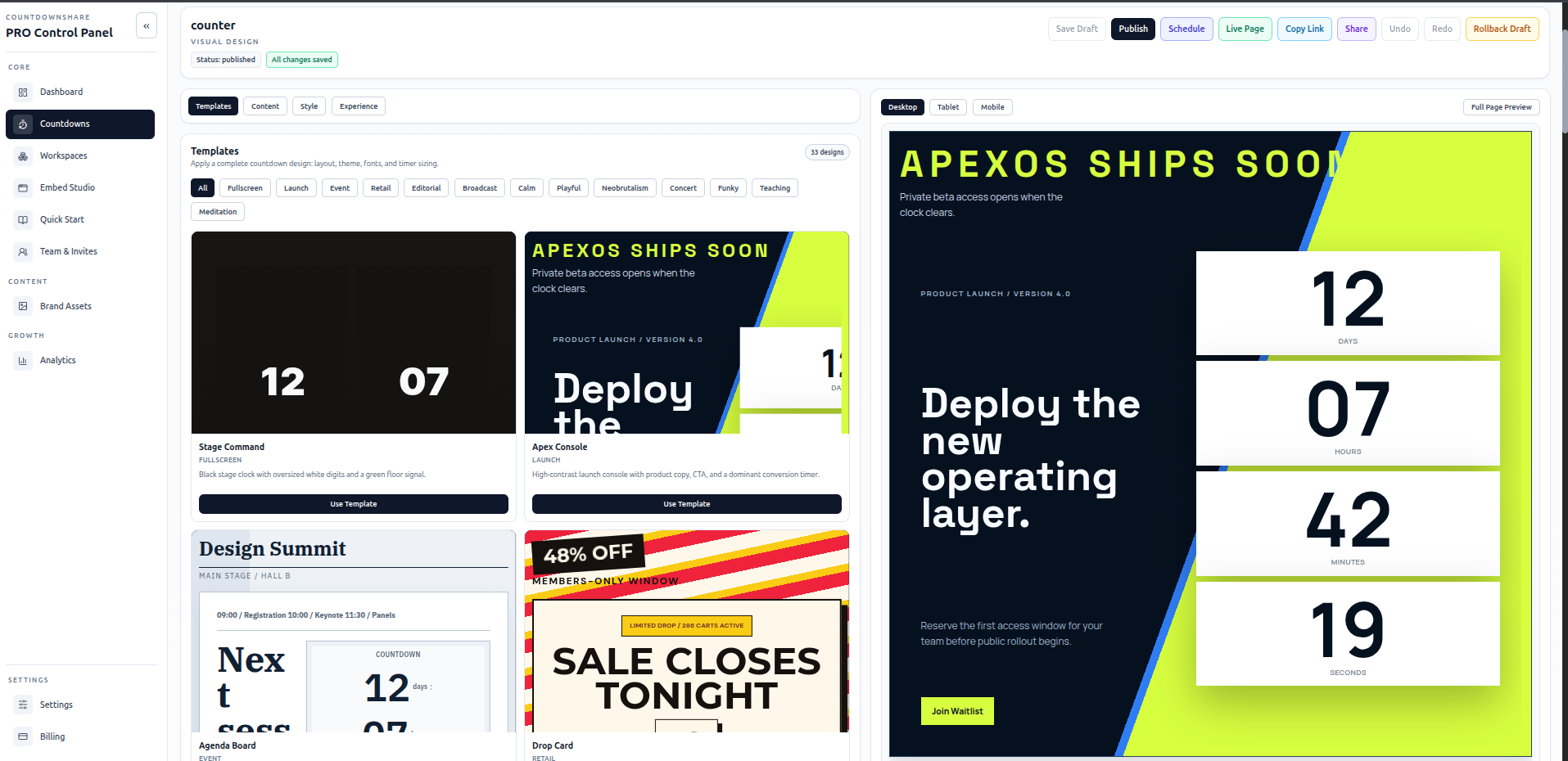
Match the timer to your store: pick brand colors, choose which units to display (days, hours, minutes, seconds), and set the timezone so the sale ends at the same moment for every shopper. Preview on mobile — most Shopify traffic is mobile, and the timer is fully responsive. Then save and your countdown is live.
Use Cases: Flash Sales, Product Launches, Limited-Time Offers
Flash Sales
Show shoppers exactly when the discount disappears. A ticking timer next to the sale price turns hesitation into checkouts during 24–72 hour flash sales.
Product Launches & Drops
Build hype before a drop with a countdown on your homepage or collection page, then switch the page to "live" the moment the timer hits zero.
Limited-Time Offers
Free shipping thresholds, bundle deals, and seasonal promotions all convert better when the end date is visible on the product page itself.
One rule keeps all of these working: the deadline must be real. When the timer hits zero, the price should change or the offer should end. Shoppers who see a timer reset learn to ignore your urgency — honest deadlines are what make countdown timers convert sale after sale.
Copy-Paste Embed Code for Shopify
Paste this snippet into a Custom Liquid block or the HTML view of any Shopify page. Replace your-timer-id with the ID from your own timer:
<iframe src="https://countdownshare.com/embed/your-timer-id" width="400" height="200" frameborder="0" allowtransparency="true" loading="lazy" style="border: none; display: block; max-width: 100%;"></iframe>Create your timer to get the embed code with your timer ID filled in automatically.
FAQ: Countdown Timer for Shopify
How do I add a countdown timer to Shopify?
Create your timer on CountdownShare, copy the embed code, then in your Shopify admin open the theme editor and add a Custom Liquid section (or paste into a page using the HTML view of the rich text editor). Paste the snippet, save, and the countdown timer appears on your store — no app installation needed.
Will a countdown timer increase my Shopify sales?
A timer can make a real sale or launch deadline clearer, but a sales increase is not guaranteed. Compare completed purchases and revenue for your own campaigns, and make sure the advertised offer actually ends at the stated time.
Do I need a Shopify app for a countdown timer?
No app installation is needed to embed a CountdownShare timer. CountdownShare does not offer a Shopify app or plugin. Create your timer here, then paste the generated website code into a Custom Liquid section or another supported HTML block. The embed loads external content, so test it on your published storefront.
Can I match the countdown timer to my Shopify store branding?
Yes. Choose from 30+ themes and customize colors, fonts, and layout to match your store. Pro users can remove CountdownShare branding entirely and apply custom CSS for a fully white-labeled timer on product and landing pages.
For deeper strategy on placement, timing policy, and trust-safe urgency, read the Shopify countdown timer guide for flash sales and drops and the step-by-step how to add a countdown timer to Shopify walkthrough.
Ready to Boost Your Shopify Sales?
Create a free countdown timer for your store in 30 seconds — no app, no monthly fee.